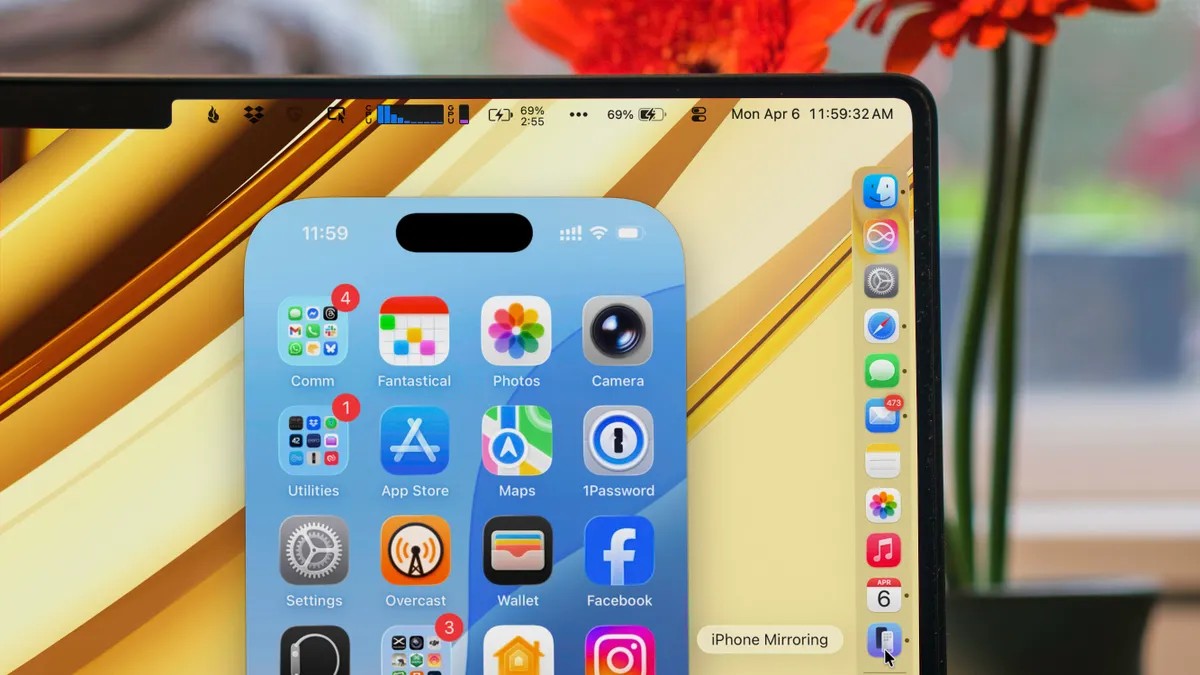
For many users, the smartphone is a constant companion, yet picking it up dozens of times a day to check a single notification can be a major distraction. Apple has addressed this friction with iPhone Mirroring, a feature that allows you to control your iPhone directly from your Mac. By turning your phone into a desktop window, you can interact with mobile apps without ever breaking your workflow on the computer.
🛠️ Getting Started: Requirements and Setup
To use this feature, you need a specific ecosystem of hardware and software. This isn’t available on older legacy systems; it requires the latest iterations of Apple’s operating systems to ensure the low-latency connection necessary for remote control.
Compatible Hardware
For your Mac (running macOS Sequoia or later):
– iMac: 2019 or newer
– MacBook Air: 2020 or newer
– MacBook Pro: 2018 or newer
– Mac Studio: 2022 or newer
– Mac Mini: 2018 or newer
– Mac Pro: 2019 or newer
For your iPhone (running iOS 18 or later):
– iPhone 11 and later
– iPhone XS / XS Max / XR
– iPhone SE (2nd generation or later)
The Connection Process
- Unified Identity: Ensure both devices are signed into the same Apple Account.
- Launch the App: Open the “iPhone Mirroring” app on your Mac (searchable via Finder).
- Security Check: You will need to enter your Mac password or use Touch ID. On the first setup, you must also enter your iPhone passcode on the Mac to authorize the link.
- Pro Tip: If you are in a secure home or office, you can enable “Authenticate automatically” in the app settings to skip the password prompt in the future.
Note: iPhone Mirroring only works when your iPhone is locked. If you pick up your phone or use it manually, the mirroring session will pause to prevent conflicting inputs between two users.
🖱️ Navigating Your Phone via Desktop
While iPhones are designed for touch, Apple has optimized the experience for mouse and trackpad users. You can click, scroll, and even use your Mac’s physical keyboard to type messages or notes—a massive productivity boost for those who find thumb-typing slow.
Essential Keyboard Shortcuts
To move through the interface quickly, use these commands:
– Cmd + 1 : Return to the Home Screen.
– Cmd + 2 : Open the App Switcher (to see recent apps).
– Cmd + 3 : Launch Spotlight Search.
You can also hover your pointer near the bottom of the window to reveal the “Home bar,” allowing you to swipe up just as you would on a physical screen.
🚀 Power User Features: Drag-and-Drop and Notifications
The true value of iPhone Mirroring lies in how it bridges the gap between mobile and desktop files.
Seamless File Transfers
Perhaps the most powerful aspect of this feature is the ability to drag and drop files between devices.
– From Mac to iPhone: Drag a file from your desktop into an open app (like Messages or Files) on the mirrored window.
– From iPhone to Mac: Drag an image or document from the iPhone window directly onto your Mac’s desktop.
This eliminates the need to wait for iCloud syncing or use third-party cloud services to move a single photo or document.
Integrated Notifications
You no longer need to glance down at your desk to see what’s happening on your phone. iPhone-specific notifications appear in the top-right corner of your Mac screen, marked with a distinct iPhone badge. Clicking these alerts will instantly open the corresponding app within the mirroring window.
⚠️ Limitations to Keep in Mind
While powerful, iPhone Mirroring is not a perfect clone of your physical device. There are several functional boundaries:
- No Camera Access: You cannot use the iPhone’s camera through the Mac window. This means you can’t use it as a webcam or for FaceTime video calls (though FaceTime audio works via the Continuity framework).
- Motion Sensing: Apps that require the accelerometer (like racing games or fitness trackers) will not function, as the Mac cannot replicate the physical movement of the phone.
- Orientation: While some apps will trigger a landscape rotation, you cannot manually toggle between portrait and landscape modes from the Mac.
🔍 Troubleshooting: Managing Multiple Devices
If you own multiple iPhones signed into the same Apple Account, your Mac might default to the wrong one. To change this, you won’t find the setting in the mirroring app itself. Instead, go to:
System Settings > AirDrop & Continuity > Widgets & iPhone Mirroring and select your preferred device from the dropdown menu.
Summary: iPhone Mirroring is a sophisticated productivity tool that bridges the gap between mobile and desktop ecosystems, offering seamless file transfers and notification management, provided you work within its hardware and motion-based limitations.