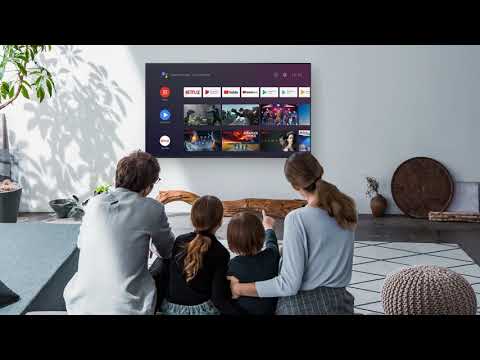
If you’re gearing up for the Super Bowl, a crisp picture isn’t enough. Poor audio can ruin the experience, making it hard to hear play-by-play commentary or enjoy the halftime show. Many modern TVs prioritize sleek design over sound quality, and even newer models with Dolby Atmos may not deliver clear speech without a few adjustments. The problem isn’t necessarily your hearing; it’s likely your TV’s settings or setup. Here’s how to fix it.
The Problem With Modern TV Sound
Today’s TVs are remarkably thin, leaving little room for quality speakers. While image technology has advanced rapidly, audio often gets short shrift. This means dialogue can sound muffled, boomy, or simply lost in the mix. This is especially true if you rely on the built-in speakers. Even with a soundbar or external system, improper settings can still degrade clarity.
1. Tweak Your TV’s Sound Settings
Most TVs have built-in audio presets that can significantly improve clarity. The key is to experiment:
- Access your TV’s Settings menu using your remote. Look for an Audio or Sound section.
- Explore the available preset modes. Options like Movie, Standard, Dialogue, or News are a good starting point. Cycle through them while watching speech-heavy content to see which sounds best.
- Disable problematic enhancements like Bass Boost or Surround Sound ; these often muddy dialogue. Night Mode can sometimes help, but may also compress the sound too much.
- If your TV has individual bass and treble controls, reduce the bass and slightly increase the treble to improve speech intelligibility.
“Bass in particular is the enemy of understandable speech… it tends to hide the frequencies that help us decipher what people are saying.”
2. Optimize External Speakers (Soundbars & Systems)
If you’re using a soundbar or speaker system, a few tweaks can make a big difference:
- Soundbars: Try speech-enhancing modes, Movie, or Standard presets. Lower the subwoofer volume if explosions drown out dialogue.
- AV/Stereo Systems: Move speakers away from walls and corners, and angle them slightly inward (“toe-in”) toward your listening position. Removing speaker grilles can also improve clarity.
- Calibration: Run a receiver’s built-in calibration tool or manually adjust levels by ear. Automated routines often require manual fine-tuning.
3. Consider a New Soundbar
If software adjustments aren’t enough, upgrading your soundbar may be the best solution. Modern soundbars designed for dialogue clarity are available at various price points:
- Roku Streambar: A budget-friendly option with HDMI connectivity and a built-in 4K streamer.
- Vizio Soundbars: Known for offering excellent value and performance.
- Zvox AccuVoice Series: Specifically designed for speech intelligibility, with models starting under $50.
Investing in a soundbar with a dedicated center channel is ideal, as dialogue is often mixed primarily into this channel.
Clear audio is essential for an immersive Super Bowl experience. By tweaking your TV’s settings, optimizing your speakers, or upgrading your soundbar, you can ensure that you don’t miss a single play call or halftime performance.