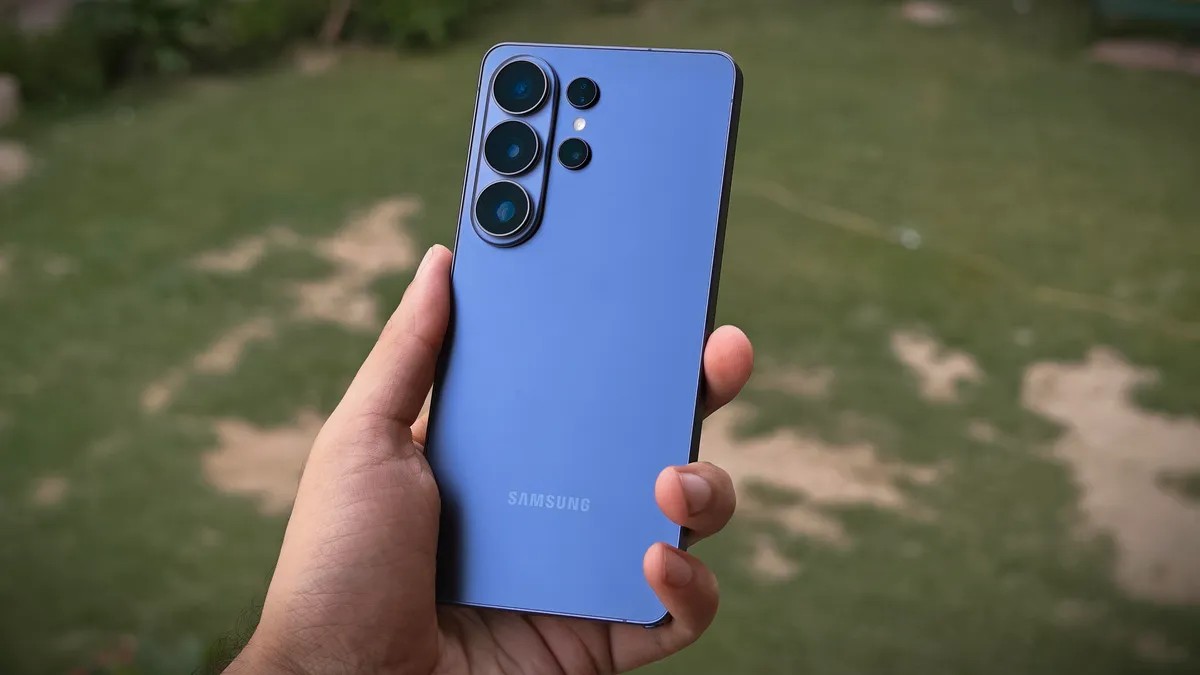
Your Galaxy S26 Ultra takes good photos.
Mostly. But it doesn’t have to take better photos without you doing anything.
Samsung threw some serious hardware at this phone this year. Larger aperture on two sensors, beefier processing, the whole package meant to scare the iPhone 17 Pro into cornering itself. Hardware alone though, is lazy.
If you’re letting the default settings run the show you’re wasting the phone’s potential. The defaults are safe. Safe is boring. Safe gets you compressed images and shutter lag when you’re trying to capture a moving dog or a fleeting neon sign.
I dug through the buried menus. Not the surface ones, the deep stuff. I found ways to stop the compression, wake up the 24-megapixel pipeline, and actually control when the phone decides which lens to use.
“If you aren’t happy with your current snaps, you need the Samsung Camera Assistant.”
Here is how you stop leaving quality on the table.
Find the hidden control panel
You might not even know this exists.
Camera Assistant is a module. Part of the Good Lock suite, basically a plugin ecosystem that lets you tear into the Android guts of the Camera app used to be a headache to install. You needed to dig through the Galaxy Store for the whole Good Lock app then find the specific module.
With One UI 8.5 things have loosened up. Samsung is preloading the entry point directly in the Camera app now.
Do this:
1. Open the Camera app
2. Hit the four dots menu
3. Settings
4. Scroll down to Camera Assistant
If the app isn’t installed it will prompt you. Tap Install. Done. If for some reason the entry is missing go back to the Galaxy Store get the full Good Lock app and download the module manually.
Once it’s on you’re in the driver’s seat. These aren’t tweaks for pros only. They are fixes for the annoying habits Samsung programmed into your phone.
Ditch 12MP. Grab 24.
The S26 Ultra has a main sensor capable of 200 megapixels. That number sounds impressive on paper.
It is useless for daily shooting.
Shooting in full 200MP mode is slow. The shutter lag is painful and the file sizes will eat your storage like a vacuum. The default out-of-the-box setting? 12 megapixels. Binned down. Compressed. Detail gone.
The sweet spot is 24 megapixels.
It’s fast enough to capture motion but keeps enough detail that you can zoom in later. And here is the kicker Samsung updated the processing so you can get this 24MP resolution across multiple lenses. Even at digital zoom stops.
You can lock this in for:
– 0.6x to 0.x ultrawide
– 1x to 1.x main sensor
– 5x to 9.x periscope telephoto
The 3x telephoto misses out. Its 10MP resolution can’t do it. The main camera also dips back to 12MP between 2x and 2.9x despite being capable of more. Inconsistent. But manageable.
I tested this on neon lights at night. In default mode the entire frame blows out. It gets bright artificially. Switch to 24MP mode. The signboards pop. The background stays dark. The image looks like reality instead of a screenshot.
Set this default immediately. Go to Camera Assistant > Photos. Toggle on 24 MP in Photo Mode and Keep 24 MP resolution. Both. Yes both.
Stop letting the phone choose lenses
Auto Lens Switching sounds helpful. It’s not.
By default the phone watches you. It watches how close you get to your subject it checks the lighting it tries to decide if you want the wide lens or the main sensor or the macro capability on the main lens.
It gets confused.
Put your phone near a flower. Wait two seconds. The phone is still deciding which lens is right. You missed the shot.
You want control. Disable Auto Lens Switching in the Lens and Zoom section. Decide your angle. Pick your zoom level. Snap. No hesitation.
Soften the blow on skin
Samsung’s processor has an obsession with sharpness. Too much.
Under artificial light faces get oversharpened. Skin textures that should be smooth turn gritty. It looks like a digital painting rather than a photo. If you take a lot of portraits or even just casual group shots you want less crunch.
Go to Photos settings again. Look for Photo Softening.
Turn it to Medium. Or High.
Compare the results. The high softening doesn’t blur details away it just reduces that artificial contrast boost the software adds to skin tones. The blacks are less crushing the shadows have some air in them. You still look like you but you don’t look like a wireframe model.
Tweak the rest. Trust no one.
The defaults leave other things turned off that you should probably leave on. Or off. Depending.
Distortion Correction is usually on. Keep it that way especially for architecture. Straight lines should remain straight not curve at the edges like a funhouse mirror.
Adaptive Pixel and Upscale Digital Zoom are off by default. I suggest you turn them on.
Test this yourself. Take a photo of a busy texture a watch dial with intricate sub-dials. With the default off the detail smudges. Turn on those two settings. The algorithm picks up edges it otherwise ignored. You get sharper text better clarity in the shadows.
One old tip people always shared? Quick Tap Shutter. I used to recommend this last year to cut down lag.
Not anymore.
Samsung fixed the shutter response speed in this year’s update. It’s fast. Enabling that toggle does nothing noticeable. However if you shoot moving subjects you might still see that ghosting halo around fast edges.
If that bothers you go to Focus settings. Turn on Prioritize Focus over Speed.
It might make the shutter slightly slower. It might. But the focus will lock before you snap. Better late than blurry.
These are the adjustments. The settings live there in the menus. Samsung gave you the tools they just didn’t set them up right out of the box.
Go change them. See if your photos get better.