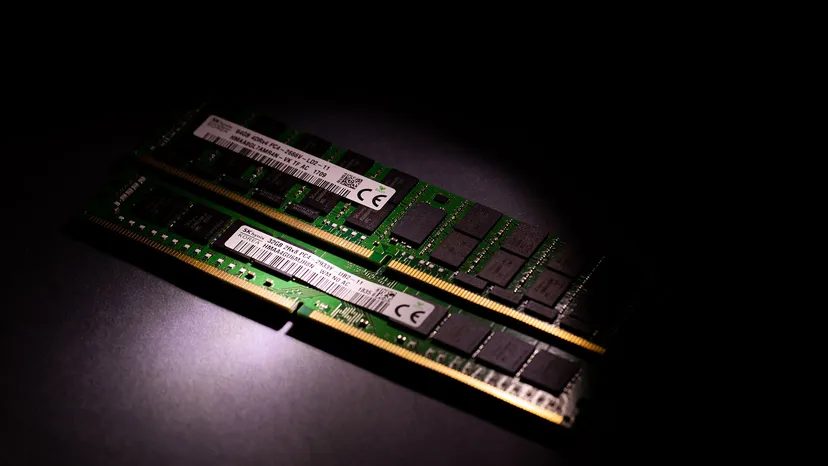
For anyone staring at a spinning beach ball or a loading bar that refuses to move, speed is the holy grail. Most people think of memory upgrades as their first line of defense. This is a standard fix. But does adding memory to the problem really help? Understanding why machines are getting faster requires a deeper understanding of how memory works.
Role of Random Access Memory
RAM stands for Random Access Memory. Although the name is a bit technical, the functionality is simple. This allows the computer to retrieve all the data immediately without having to shuffle through everything before it. This is quite different from read-only memory (ROM) or traditional hard drives, which usually require sequential access. Think of RAM as your computer’s short-term workspace.
During active tasks, the central processing unit (CPU) doesn’t work with data sitting on the slow hard drive. It pulls what it needs into RAM. This happens whether you’re playing a high quality game or just editing a spreadsheet.
Adding a memory stick actually speeds up your system. However, the degree of improvement depends on two things. It’s what you’re doing right now and what you already have.
- General Use : If you only need to browse and edit documents, the app will open immediately without delay if you have enough RAM.
- Heavy duty : With additional capacity for games and video editing, you can handle several heavy applications at the same time without clogging up your system.
Memory chip types
Not all RAM is created equal. You will come across different types, each with their own unique characteristics.
- Dynamic RAM (DRAM) : This is standard. Memory cells quickly lose their charge, so you need to refresh them constantly while the computer is on. This is the most common type found in desktop and laptop computers.
- Static RAM (SRAM) : This stuff doesn’t need refreshing. It consumes less power and is much faster than DRAM. However, because they are expensive and complex to manufacture, they are usually reserved for CPU cache.
- Synchronous Dynamic RAM (SDRAM) : This version is synchronized with the system clock. This synchronization makes it faster than older asynchronous DRAM standards.
- Video RAM (VRAM) : This is graphics card specific. VRAM stores the image data and makes it immediately available to the GPU. If you edit 4K video or play games at high resolution, the quality of VRAM directly affects frame rate and rendering time.
Why performance changes when memory is added
Installing additional memory expands the data storage that the operating system can quickly access. This reduces the need for virtual memory.
Virtual memory is a backup solution. When the physical RAM is full, the operating system starts using the hard disk for temporary storage. This is a bottleneck. Hard drives, even fast SSDs, are orders of magnitude slower than RAM. Every time the system has to swap data between the drive and memory, performance suffers.
Increasing the amount of RAM allows your computer to store more information in your immediate workspace. This leads directly to speed. This improvement is most noticeable on systems with low memory. If your computer stutter when you switched between ten browser tabs, adding more RAM can fix the problem. Previously delayed tasks now run smoothly.
Certain types of memory, such as VRAM, are also important here. They handle the high-speed data flow required for graphics. Without enough memory, gaming and creative workflows hits a wall, no matter how fast your CPU is.
How much memory do I need?
There is no single magic number. It all depends on your settings and software.
Modern applications are greedy. Video editing software, advanced 3D modeling tools and modern AAA games require a lot of memory. Upgrading allows these programs to store more assets in main memory. This speeds up access and processing. The result is a snappier experience.
If you’re running older software on a modern computer, you may find that 8GB is enough. However, if you compile code, render videos, or use virtual machines, you may need 32GB or more. The key is matching the capacity to the workload.
8 Tips for increasing your RAM
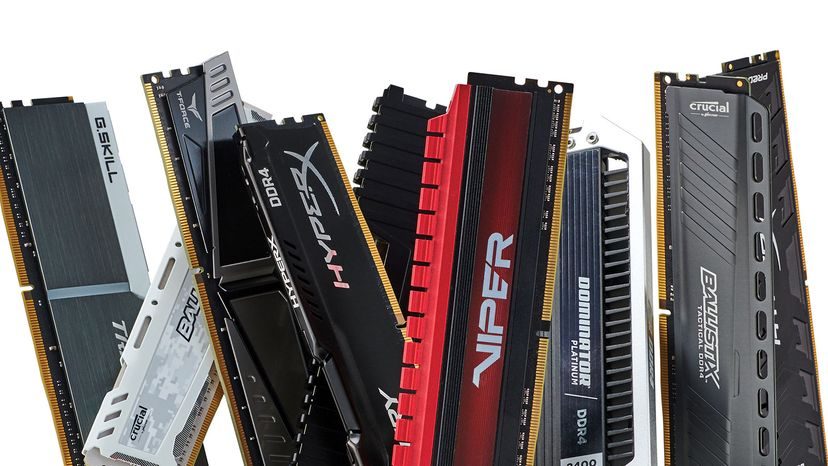
Adding more RAM is often the cheapest way to breathe life into a slow machine. It’s very simple. This works. But it’s not as simple as buying a stick and slamming it in. You need to know what you are doing to avoid wasting money and damaging parts.
Here’s how to add RAM to your computing device without the guesswork.
Assess your real needs
Start with data. Don’t buy 32GB if you just want to surf the web or check email. Check your current usage. In Windows, open the Task Manager. On a Mac, use Activity Monitor. Look at the memory tab.
If the utilization rate is consistently 85% or 90%, you have a problem. Modern applications, especially video editors and high-end games, eat up memory for breakfast. If you want to play games, 8GB is currently the minimum requirement. 16GB is the best choice. 8GB might be fine for standard office work, but if you have 50 Chrome tabs open, you will feel the pinch.
Check motherboard compatibility
Your motherboard is the boss. It determines what you can buy. You need to know if it supports SDRAM, DDR3, DDR4 or the new DDR5. Mixing generations is not possible. they physically do not fit.
Clock speed is also important. If you buy 3600 MHz RAM, but your motherboard only supports 2666 MHz, you’re wasting money. The system reduces the RAM memory to the limit of the motherboard. You get more capacity, but no speed advantage.
Choose the right type
For most people, Dynamic Random-Access Memory (DRAM) is sufficient. This is standard. It is very cheap. it works.
There are faster types, such as static RAM (SRAM), which are used as CPU cache instead of system memory. You will not find SRAM sticks to buy for my desktop. Next is video RAM (VRAM), which is specific to your graphics card. Modern GPUs cannot be upgraded separately. It is soldered to the board.
If your system supports dual-channel configurations, you must install the RAM in pairs. Putting one stick in, you lose the opportunity. Two identical sticks operating in dual-channel mode double the data path width. This significantly improves integrated graphics and overall multitasking performance.
Define capacity limits
Motherboards have a hard cap. Check your manual or the manufacturer’s website. If your motherboard supports up to 64 GB, you can buy two 32 GB memory sticks (total 64 GB). Buying four 32GB sticks is not a good idea.
Also check the slot configuration. Some boards have four slots. Some have two. If you have four slots and two are occupied, you cannot add more seats when you reach the physical limit. You may need to remove the old stick to make room for the new, larger stick.
Install carefully
This is where things get physical. Turn off your computer. Unplug the power cord. Press the power button for a few seconds to drain the remaining power.
Ground yourself. Touch the metal part of the case. Static electricity can destroy RAM.
Open the case. Find your RAM slot. They are usually located on the right side of the processor. If you already have RAM, press the clips on both ends of the slot outwards. The stick comes out. Remove it slowly.
Get a new stick. Locate the bottom pin notch. It only fits one way. Align it. Press down firmly. You should hear a click. The clips snap firmly into place and lock the module in place. If you have to force it, you’re doing it wrong. Stop. Check alignment.
Upgrade in Stages
Do you have a budget? Not sure if your RAM is really the bottleneck? Upgrade in stages. Add 8GB. Try it. See if the stuttering stops.
Computers are complex systems. If you have an older CPU or your hard drive is a slow mechanical hard drive, adding more RAM may not solve your speed problems. The processor will still choke on the data. The hard drive is still the bottleneck.
Check if other components are blocking it. If adding more RAM doesn’t change anything, you may need to upgrade your CPU or switch to an SSD. Don’t think that RAM is a panacea.
Optimize your operating system
When the hardware installation is complete, restart the device. Windows and macOS usually detect the new RAM automatically. However, you should check for OS updates. New updates handle memory management better.
You can also adjust virtual memory settings. When the physical RAM is used up, the hard drive pretends to be RAM. Windows allows you to adjust the page file size. In MacOS, most of this is done automatically. However, making sure your operating system is up-to-date will help it recognize and effectively utilize the new capacity.
Monitor and Adjust
After installation, pay attention to performance. Use Task Manager again. Observe the memory graph.
If you see frequent swapping to the disk, the RAM memory is still not enough or the other components are too slow. Clear unnecessary files. Manage startup programs. Disable apps that don’t need to run in the background.
Regular maintenance ensures that your updates are effective.
The goal isn’t just to have more RAM. The right amount, the right speed and the right configuration.
Adding RAM FAQ
What is RAM? What is it used for?
Random access memory is volatile memory. It holds data for active applications. It’s fast. This is temporary. If the power goes out, all of the RAM is lost. That’s why you need to save your work. RAM determines how many programs can run simultaneously and how smoothly they run.
How do I know if my RAM is upgradeable?
Check your system information. In Windows, press Windows + Pause/Break. Look for “Installed memory”. On a Mac, click Apple menu > About This Mac. Check if there is a “Upgradeable” flag. Many modern laptops, especially ultrabooks, have soldered RAM. You cannot upgrade it. Desktops usually can. Search online for your own model to find out.
How much memory do I need?
8 GB is the absolute minimum for Windows 10/11. 16 GB is recommended for most users. 32 GB or more is suitable for heavy video editing, 3D rendering or hardcore gaming. There is no one-size-fits-all approach. It depends on your workload.
How do I know if I can add more RAM to my computer?
There are two limitations: the operating system and the motherboard. Operating systems like Windows 10 Home have hard limits on addressable memory. Motherboards have physical and electrical limitations. Check the lower of the two. Also, make sure the type (DDR4 vs. DDR5) and speed of the new memory module match the existing memory module as closely as possible to ensure stability.