Most people treat electronic devices like furniture. You move the Mac off the desk and vacuum the dust bunnies, leaving the laptop behind. This is wrong. Computers have more grime than your steering wheel, and these bacteria aren’t just on surfaces. It slips into the crevices of the connections you use the most.
Apple devices are stylish. They look pristine in the store. In fact, they are magnets that attract oil, skin cells and dirt. Cleaning is not scrubbing. It’s all about maintenance. Dirt should be removed, but be careful not to scratch the anodized aluminum or allow moisture to penetrate the logic board.
Here are five ways to keep your MacBook Air or MacBook Pro looking new and hygienic.
Tip 5: Clean the mouse
The mouse is the dirtiest part of your setup. It’s not just a trackpad. The same applies to external mice. If you use one, it’s been in your hand for hours. Sweat, lotion and dead skin can collect on buttons and scroll wheel.
You might think that a quick wipe with a dry cloth is enough. This is not true. Oil accumulates. Over time, the plastic may turn yellow. It can also interfere with the sensor’s ability to accurately track movement.
How to clean your mouse without damaging it:
– Turn off the power. If wireless, turn it off. If it’s wired, unplug it. You don’t want any accidental clicks or shorts.
– Use a microfiber cloth. No paper towels. Paper towels scratch. Microfiber removes oil stains.
-** Dampen, don’t soak. ** A small amount of distilled water or 70%
All you have to do is apply an isopropyl alcohol solution to the fabric. Do not spray directly on equipment. Liquid may drip into the battery compartment or the sensor.
– ** Focus on the scroll wheel. This is where debris gets trapped. Remove dust from the grooves with a cotton swab lightly moistened with alcohol.
– Wipe button. **Buttons sticking are usually caused by a sticky residue. Gently wipe with a damp cloth to restore feel.
“A clean mouse is not just about aesthetics. Accuracy and hygiene are also important.”
Do not use strong chemicals. Bleach. ammonia. Window cleaner. These remove the coating. Breaks down plastic. The surface may become brittle or discolored.
Be especially careful if you are using a mechanical mouse with an exposed switch. Residual moisture can cause rust or electrical failure. It is safer to dry brush complex areas.
Your hand moves over the mouse dozens of times per minute. It is an extension of your body. Treat it like a cell phone. Wipe it every day. The difference in feel is immediate. The trackpad on the MacBook needs similar attention, but it’s a completely different matter. This is explained next.
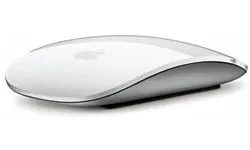
Most people treat peripheral devices as if they are sterile. it is not. Your mouse is probably the most germ-prone item on your desk because you touch it more than any other part of your computer. Before you grab a wipe, you need to disconnect it properly. If wireless, remove the battery. If it is connected, disconnect it. Safety first.
Apple recommends using a disinfectant wipe such as Lysol or Clorox to clean the top surface. But most people fail here. You need a soft, lint-free fabric. And you have to be stingy with the cleaner. Excess liquid is absorbed into the cracks. Once inside, it’s game over. permanent damage. If you use a damp cloth, wring it out first. If you spray cleaner, spray it on the fabric, not the mouse. Direct use is the fastest way to short circuit.
Cleaning methods vary depending on the sensor. Do you have a trackball? Turn it over and rub it back and forth on the clean white paper. Dirt comes off due to friction. Laser mouse? be careful. Use only a dry, lint-free cloth. No cleaners. Liquids can reduce the sensitivity of the laser. Do not disassemble Mighty Mouse. It’s glued shut. If you try to open it, it will break.
How to safely clean the outside of your Mac
The exterior of a laptop or desktop computer is prone to fingerprints, dust and general dirt. Dust is not only ugly. The ventilation openings on the desktop can become blocked, causing the fans to run too hard and the components to overheat.
First, turn off the Mac with the power button and unplug the power cord. Make sure you have a lint-free cloth that won’t scratch the surface. A microfiber cloth or Swiffer duster also works well. First remove the dust with a dry or slightly damp cloth. You can use a delicate cleaner for stubborn stains. However, keep it away from aerosol sprays, bleach, solvents or abrasives. These remove the finish.
Remember the same rule in mind as with the mouse. Make sure no moisture gets into the gaps. Apple’s warranty does not cover water damage. If liquid gets in through an opening or a seam, you are at your own risk.
Clean the “inside” and free up space
Cleaning is not only physical. It’s also digital. Let’s take this opportunity to organize the interior of your Mac. Deleting cache files, junk files, and unused language packs frees up a lot of storage space and improves performance.
Remove apps you no longer need. Organize your downloads folder. Check your system settings. Empty the trash. Transfer large photos and videos to external drives. Delete unused fonts, old iChat logs and large email attachments. Lighter systems work more smoothly.
Disinfect your Mac keyboard
Next is the keyboard. When you’re stressed, this is the area where you’re most likely to spill coffee, breathe over, or write furiously. Therefore, it becomes a place where bacteria and dirt can easily accumulate.
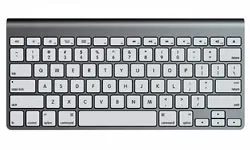
Let’s be honest. You are probably eating chips as you type this. You didn’t wash your hands after lunch. Your MacBook Air or Pro is covered in invisible grease, dust and dead skin cells. Time to clean it up.
Let’s start with the keyboard. Compressed air is your best friend. Blast the gaps between the keys and remove the crumbs and fluff that have accumulated in them for months. However, air alone cannot remove dirt.
You need a soft, lint-free fabric. It could be a slightly milder cleanser, but less is more. To clean the external keyboard, unplug it first. If wireless, remove the battery. Don’t take risks.
Be gentle. MacBook keys fall more easily than you think. One wrong move with a frayed cloth or too much pressure, one wrong move can lead to a frustrated reassembly. To clean the pad, press and hold the buttons on either side of the pad you want to wipe. This requires patience, but the mechanism is protected.
The enemy here is water. These keys are located directly above the main logic board and hardware components. Excess water drips down the sides. This can cause a short circuit. It can destroy your laptop.
If necessary, use a disinfectant, but wipe off any residue with a slightly damp cloth. Over time, leftover cleaning agent can damage the surface. Dry thoroughly.
De-gritting Your Laptop Trackpad
The trackpad are fragile. Apple clearly warns against the use of cleaning solutions. No window cleaner. No alcohol. No ammonia.
Just water.
Dampen a soft, lint-free cloth. Wipe the trackpad. Wipe off excess water immediately with a dry cloth of the same material. Do not leave it unattended.
What do you do when the white MacBook trackpad turns yellow or gray? Apple does not officially recommend fixing this issue on their support site. But techies rely on Mr. Clean Magic Eraser. Rub it gently. It can lift the grit and restores the original white gloss. Just be careful not to rub too much.
Make your screen shine
The screen is as sensitive as the trackpad. Again, use a soft, lint-free cloth. Moisten it a little with water.
Apple warns against using Windex or glass cleaners containing alcohol. These chemicals can remove anti-reflective coatings. It can damage the surface.
Be very careful. Moisture getting into microphones, cameras and other cracks can lead to expensive repairs. Wipe gently.
If you don’t have enough water, look for a screen cleaner designed specifically for Mac screens. Monster iClean is one of the alternatives in the Apple Store. Designed for safe use even with sensitive screens. If not, wipe it with water and a microfiber cloth. It’s safer than guessing.
Clean iPhone and iPad
Your iPhone and iPad are supposed to repel oil. They aren’t. Fingerprints are still everywhere.
Clean them when you clean your Mac. First, use a dry, lint-free cloth. Most fingerprints come off simply by rubbing.
If you need more power, use a tiny amount of water. Be careful not to allow moisture to enter the opening. Speakers and charging port are easily damaged.
Do not use glass cleaner. May damage touch screens and oleophobic coatings. First, this coating makes the screen smoother and less prone to fingerprints. If you mess it up, your device will get sticky and dirty faster.
Final polishing
You don’t need much time to do this. A few minutes is all you need.
wipe down the touch bar. Clean the power supply. Remove the accumulated particles around the workspace. Just like your keyboard, dust can collect in these small areas.
If you use the right tools and avoid soaking any cracks, your Mac will look clean and tidy. When it’s clean, it works better. Feels better when touched.
For more information about specific Mac products, see the resources on the following pages.
Lots More Information
The cycle continues. You are responsible for cleaning the equipment. you use them. you eat them. Dirt accumulates again.
It’s a losing battle, technically. But a clean workspace feels different. It looks much better. It works reliably.
Remember, less liquid is more. Always.