Your monitor isn’t showing you a magical painting. It’s displaying millions of tiny dots called pixels. At standard resolutions, that’s over 2 million individual points of light. The computer has to figure out exactly what color and brightness each dot needs to create a coherent image. It can’t do this alone. It needs a translator. That translator takes raw binary data from your CPU and converts it into the visual chaos on your screen. This device is the graphics processor, or GPU.
Most entry-level laptops and desktops come with integrated graphics. This means the GPU is built directly into the main processor. It’s convenient. It saves space. It handles basic tasks like word processing and web browsing just fine. But pro-level machines or custom builds often include a dedicated graphics card. The advantage here is speed. A dedicated card can render complex visuals significantly faster than an integrated chip.
Think of your computer as a corporate office. The CPU is the creative director. Software applications are the clients sending in requests for artwork. The graphics card is the art department. The director sends briefs to the department. The department decides how to execute the vision. They put it on paper. You see the final result. It’s a simple workflow, but the machinery behind it is intense.
Why You Need Dedicated Hardware
Creating an image from binary code is exhausting. If you’re playing a 3D game, the graphics card doesn’t just draw one picture. It draws 60 to 120 pictures every single second. For each frame, it constructs a wireframe of straight lines. It rasterizes the image by filling in the pixels. It calculates lighting effects. It applies textures and colors.
Without a dedicated graphics card, your CPU would choke. The workload is too heavy. The card handles these calculations so your main processor can focus on other tasks. This separation of duties is why gaming PCs exist. It’s not just about having more power; it’s about having specialized power.
The Four Pillars of a Video Card
A graphics card’s job is complex, but its anatomy is straightforward. It relies on four main components to function. Ignore the marketing fluff about “revolutionary architecture” for a moment and look at the physical reality.
- Motherboard Connection: This slot provides both data transfer and electrical power. Without it, the card is just expensive metal.
- The Graphics Processor (GPU): This is the brain. It decides exactly what to do with every single pixel on the screen.
- Video Memory (VRAM): This holds information about each pixel. It temporarily stores completed pictures so the GPU can fetch them instantly for the next frame.
- Monitor Connection: The cable port. HDMI or DisplayPort. This is how the final result reaches your eyes.
The GPU Explained
We need to look closer at the processor and the memory. They are the engine and the fuel tank. The GPU does the heavy lifting. The VRAM keeps it fed. If you want to understand why your computer lags in high-resolution textures, you have to look at how these two parts talk to each other. The bottleneck is rarely the card itself. It’s usually the memory bandwidth or the size of the cache.
But before we dive into VRAM speeds and clock cycles, let’s establish why this matters to you. You aren’t just buying “pixels per second.” You’re buying the ability to run software that demands real-time visual computation.

The Silicon Engine Under the Hood
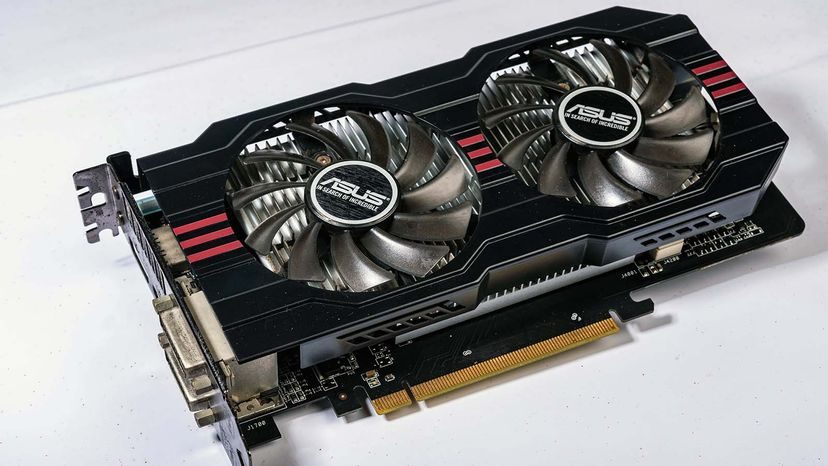
Think of a graphics card as a specialized motherboard in its own right. It’s a printed circuit board populated with a processor and video RAM, but it’s the BIOS chip that keeps the chaos in check. That little silicon square stores settings and runs diagnostics on memory and ports every time you power on. It’s the unsung hero ensuring the hardware doesn’t crash before the desktop even loads.
At the center of this board sits the GPU. The graphics processing unit looks superficially like a CPU, but the similarities end there. While a central processor is a generalist juggling tasks, a GPU is a specialist built for one thing: complex mathematical and geometric calculations. It’s designed to render graphics. Some high-end GPUs today pack more transistors than the average CPU. That’s not a typo. It’s raw parallel processing power dedicated to visuals.
Heat is the enemy of silicon, and GPUs generate a lot of it. You’ll find them huddled under massive heat sinks or screaming fans to keep temperatures from melting the board. Integrated chips take a different approach. They don’t have their own dedicated VRAM. Instead, they siphon from the system’s main RAM pool. This creates a bottleneck. When you’re gaming with integrated graphics, your system might run short on memory because the CPU and GPU are fighting over the same resource. It’s a compromise for space and cost, but a noticeable one for performance.
Rendering Reality: What the GPU Actually Does
Processing power is only half the story. A GPU relies on specialized programming to analyze data and manipulate images in real-time. AMD and Nvidia dominate this space, each pushing their own enhancements to squeeze out better performance. When you look at what modern video processors handle, it’s less about simple drawing and more about simulation.
- Full scene anti-aliasing (FSAA) smooths the jagged edges of 3-D objects, making curves look like curves.
- Anisotropic filtering (AF) keeps images crisp even when viewed at extreme angles, preventing that muddy blur.
- Real-time physics and particle effects simulate fire, water, and destruction without freezing your frame rate.
- Multiscreen displays allow for expansive setups where one GPU drives multiple monitors.
- High frame rate video output ensures motion looks fluid, not stuttered.
- Ultra high-definition video with millions of pixels delivers clarity that matches modern 4K standards.
- GPU-accelerated calculations offload heavy math from the CPU, freeing it up for other tasks.
Each company has also developed proprietary techniques for applying colors, shading, textures, and patterns. These aren’t just marketing buzzwords; they’re the difference between a flat, gray image and one that looks like it has depth and texture.
The Memory Buffer
As the GPU renders scenes, it needs a place to stash the data. It uses the card’s VRAM for this. Every pixel, its color, and its location on the screen are stored there. Part of this VRAM acts as a frame buffer, holding completed images until the monitor is ready to display them. This isn’t just storage; it’s a high-speed staging area. Video RAM operates at blistering speeds and is dual-ported. The system can read from it and write to it simultaneously. This parallel access prevents the GPU from waiting on data, keeping the image pipeline flowing.
Connection and Evolution
Modern video cards plug directly into a PCIe x16 expansion slot. It’s the standard lane for high-bandwidth peripherals. But not every machine has this luxury. Small form-factor computers, like laptops and mini desktops, often lack these slots. They rely on integrated graphics. If you need desktop-level performance on a compact machine, you have to use a workaround. An external GPU enclosure allows you to connect a standalone card, but it’s costly and adds bulk. It’s a hack that works, but it’s a reminder of the physical constraints of miniaturization.
The journey from the Monochrome Display Adapter (MDA) to today’s 4K beasts is stark. IBM introduced the first graphics card in 1981. The MDA provided text-only displays. Green or white text on a black screen. That was it. No images. No color. Just lines and letters. Today, both integrated chips and standalone cards can easily push HD signals (1,920 x 1,080 pixels) through HDMI or DisplayPort cables. Standalone cards often go further, outputting Ultra HD 4K (3,840 x 2,160) video. Higher specs offer even greater resolutions. We’ve moved from counting characters to simulating reality, all on a slab of silicon that fits in your palm.
Finding the Right GPU Balance
You can tell a high-end graphics card from a mile away. It’s loud, it’s big, and it usually has enough VRAM to drown a small fish. Manufacturers know this. They dress these cards up with RGB lighting, custom shrouds, and fans that look like jet engines. It’s marketing gold. But does your average user actually need that much horsepower?
Probably not.
If your daily grind involves email, Word documents, and scrolling through social feeds, you are overpaying for performance you will never see. Integrated graphics built into modern CPUs handle 2D tasks just fine. They are efficient. They don’t need extra cooling fans. You only need a discrete card if you are pushing pixels in specific ways.
Casual gamers? A mid-range card is the sweet spot. It runs titles smoothly without breaking the bank. If you are a hardcore gamer or you spend your days modeling 3D assets for animation, then you need the heavy hitters. That’s where the price tag jumps.
Measuring Real Performance
Spec sheets are full of numbers that mean nothing to most people. To understand what a card actually does, you have to look at the frame rate. This is measured in frames per second (FPS). It’s how many complete images the GPU pushes to your screen every second.
The human eye can process about 25 frames per second before things look choppy. But in a fast-paced shooter or racing game? You need at least 60 FPS. Anything less feels sluggish. It feels broken.
Two main hardware metrics drive this:
- Triangles or vertices per second: 3D worlds are just math. Triangles. Polygons. This metric tells you how fast the GPU can calculate the shape of the object before you even see it. It’s the wireframe speed.
- Pixel fill rate: This is how many pixels the GPU can color and place on the screen in a second. It’s the rasterization speed.
These speeds depend on the raw hardware specs. You are looking at:
- GPU clock speed (MHz)
- Memory bus size (bits)
- Total video memory (MB)
- Memory clock rate (MHz)
- Memory bandwidth (GB/s)
But don’t get tunnel vision on the GPU. The CPU and motherboard matter. If your motherboard is slow, it can’t feed data to that fast graphics card fast enough. It’s like putting a Ferrari engine in a tractor. The bottleneck is real. The card needs instructions from the CPU to work. If the road is clogged, the car stops.
Integrated Graphics vs. Discrete Cards
Many CPUs now come with integrated graphics. These are tiny circuits on the processor die. They handle 2D images easily. For office work, web browsing, and media consumption, they are perfect. They save power. They keep your case cool.
Plugging in a separate graphics card overrides these onboard functions. The system switches over. The discrete card takes over the heavy lifting.
Some users try to squeeze more life out of their hardware by overclocking. This means manually raising the clock speed of the GPU or memory to run faster than the factory settings. People usually overclock the memory because pushing the GPU core clock often leads to overheating.
Does it help? Yes. Performance goes up.
Does it have downsides? Yes. It voids your warranty. And if you push it too far, your system crashes. Or catches fire. Metaphorically speaking. Probably.
Navigating the Market: What’s Actually Good?
The market is crowded. Here is how to cut through the noise.
Which graphics card is best for gaming?
There is no single answer. It depends on your budget and resolution. For heavy gaming, the NVIDIA GeForce RTX 3090, 3090 Ti, and 3070 are top-tier options. On the AMD side, the Radeon RX 6800 holds its own. If you want the absolute best NVIDIA card, the RTX 3090 (DirectX 12.00) leads the pack. The RTX 3080 is a close second.
Is GTX or RTX better?
Generally, RTX is newer and features ray tracing. Comparing specific models, the GeForce RTX 2060 is faster than the older GeForce GTX 1070. But neither of those cards can handle 4K ultra gameplay comfortably. You need the newer architecture for that.
Can you put a graphics card in a laptop?
Usually, no. Most laptops have the GPU soldered directly to the motherboard. It’s not replaceable. If your laptop is slow with graphics, you’re stuck with it.
However, there is an exception. If your laptop has a Thunderbolt 3 port, you can attach an external graphics card via an enclosure. It works. It adds power. But it’s expensive and bulky.
The tech moves fast. Today’s top tier is tomorrow’s mid-range. Check the specs. Check your port availability. Don’t buy the biggest card you can find. Buy the one that fits your actual needs. And maybe leave the overclocking to the professionals. Or the people who don’t mind buying a new warranty.