Cloud storage has become the default way we keep our digital lives intact, but Apple’s specific approach to it often leaves people scratching their heads. At its core, iCloud is just Apple’s implementation of cloud computing technology, designed to give you password-protected access to online storage space. But what is iCloud exactly? It is the central hub for your data on any Apple device.
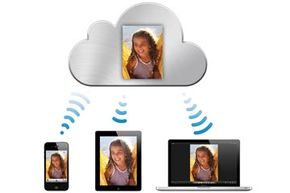
Think of it as a bridge. You upload a photo from your iPhone. That same photo appears on your MacBook. You save a document on your Mac desktop. You access it on your iPad while waiting for coffee. It works across iPhones, iPads, Macs, and even iPod Touches, as long as they are connected to the internet. The goal is simple: your data should follow you, not the other way around.
The Evolution from MobileMe
iCloud didn’t appear out of nowhere. It replaced MobileMe, Apple’s previous online storage service. MobileMe was an annual subscription that handled synchronization for emails, contacts, calendars, and browser bookmarks. It also offered iDisk for file storage and iWeb for website hosting. While MobileMe was primarily for Apple devices, it did allow some data sync from non-Apple computers.
Apple essentially folded MobileMe into iCloud, making significant changes. iCloud isn’t just a replacement. It added features, flexibility, and a free tier that MobileMe never offered. You get 5 GB of free storage. That number sounds small, but it works differently than you might think.
How the 5 GB Limit Actually Works
The 5 GB cap is the first thing people worry about. It sounds tight for photos and documents. But Apple counts digital purchases differently. Music, movies, and books bought from the iTunes Store do not count against your 5 GB allowance. They are streamed or downloaded, but they don’t eat into your personal storage quota.
This distinction matters. If you only buy content and store a few emails, you might never hit that limit. If you are backing up every photo and document, you will. The service is integrated deeply into Apple software. If you live in the Apple ecosystem, it is the most convenient option available. iOS and macOS apps connect to your iCloud space automatically. Your contacts and photo gallery are there by default.
Why Integration Matters More Than Size
Size is a factor, but integration is the real advantage. MobileMe was a service you used. iCloud is a service you live inside. Because it is baked into the operating system, you don’t need to manually upload files to a web portal. Your data syncs in the background. This makes it safer and more readily accessible for daily use.
We will look at the specific features, the paid plans, and how iCloud stacks up against competitors like Google Drive or Dropbox in the next sections. For now, understanding the shift from MobileMe helps explain why Apple built it this way. It wasn’t just about storage. It was about continuity.
The 10-Device Rule and Storage Realities
iCloud changes the game by letting you sync everything from contacts to photo libraries across ten different gadgets. That is double the limit imposed by the old iTunes Store authorization rules. You get those ten slots for your Apple ID, and once they are authorized, every app capable of using iCloud can pull data from any of those devices. Developers decide how their specific apps interact with the cloud, so you have to check the help docs to see if your favorite tool actually supports syncing. If you are building an app, you need to look at Apple’s developer APIs to make that connection work.
There is a massive benefit buried in the fine print: unlimited free storage for anything you buy from the iTunes Store. Music, movies, TV shows, ebooks, and apps do not eat into your free 5 GB of iCloud space. Buy something once, and it is instantly available for download on any of your ten authorized devices. This applies to purchases made years ago under the same Apple ID, as long as they haven’t been removed from the store.
Five gigabytes might feel tight if you are hoarding non-iTunes files like raw documents or high-res photos. Apple knows this. You can buy more space if you need it.
- 50 GB for $0.99 a month
- 200 GB for $2.99 a month
- 2 TB for $9.99 a month
Why iCloud Backups Beat Local Copies
The real power of iCloud lies in how it handles your iOS devices. It backs up your iPhone, iPad, or iPod Touch daily, provided they are on WiFi. These aren’t full clones of your device. They are incremental. iCloud only stores the data you have changed since the last backup. This saves space and speeds things up.
What actually gets saved includes:
- Device settings like screen brightness or volume levels
- How your apps are arranged on the home screen
- Ringtones and text messages
- Apps, music, and books bought from iTunes
- App data, such as game scores or account details
- Photos and videos in your Camera Roll
Restoring from these backups is just as fast. If you lose data, brick your device, or buy a new iPhone, you can pull everything back into place quickly. It simplifies the disaster recovery process significantly.
iTunes Match: Filling the Gaps
iCloud isn’t the only tool in the shed. iTunes Match sits outside of iCloud proper but enhances the experience. It targets music you already own but didn’t buy from Apple. Maybe you ripped CDs or downloaded tracks from other sources and dumped them into your iTunes library.
iTunes Match checks if those files exist in the iTunes Store. If they do, it adds them to your iCloud Music Library. You get the same streaming access you would have if you bought them directly. For the tracks iTunes can’t match, you can upload them to the cloud. Now you have a consistent library across all devices, regardless of where the original file came from.
How does this stack up against competitors? We will look at the challenges iCloud faces and how it compares to other cloud storage solutions.
Navigating iCloud’s Ecosystem Constraints
You can’t just plug into iCloud from anywhere without a bridge. Like most cloud providers, Apple forces you to use its specific software to talk to its servers. The service works globally, sure, but you still need that front-end application to manage the handshake between your hardware and your data. It’s an ecosystem lock-in. You’re not just storing files; you’re subscribing to a workflow.
Then there’s the bandwidth question. Apple knows mobile data isn’t infinite. That’s why iCloud restricts certain sync behaviors to Wi-Fi only. Your phone won’t chew through a limited 3G plan just to shuffle photos in the background. It’s a protective measure for your wallet, even if it feels restrictive when you’re off the grid.
The Name That Almost Cost Apple a Lawsuit
iCloud didn’t just hit a technical snag; it hit a legal one. In June 2011, days after Apple announced the service, an Arizona VoIP company called iCloud Communications sued. They’d held the trademark since 2005. Apple had filed eleven applications and bought a domain from a Swedish firm, Xcerion. The U.S. Patent and Trademark Office noted that while the Arizona firm owned the company name, they hadn’t registered the “iCloud” brand itself. It was a close call. The lawsuit dropped, but the risk was real. Apple got lucky, or maybe just got there first.
How iCloud Stacks Up Against the Competition
If you’re looking for iCloud alternatives for music and storage, you have options. But they all have trade-offs.
Amazon Cloud Drive feels the closest to Apple’s model. You buy content, you upload it, you access it anywhere. But Amazon lacks the deep operating system integration that makes iCloud feel native on Mac and iOS. Amazon caps your free space tightly. Its win? Music streaming on mobile devices via the Amazon MP3 Player. That’s a feature Apple was still figuring out at the time.
Dropbox is the veteran here. It gives you 2 GB for free, which is nothing compared to Apple’s starting offer. It doesn’t integrate into the OS the same way. But developers love its API. You’ll find well-built apps for every major desktop and mobile platform. The catch? Every file, no matter how small, counts against your total limit. It’s pure storage, not a media hub.
Google Music is a specialist. It’s built for storing and streaming audio. It matches Amazon in features but lacks the flexibility to sync your contacts, calendars, and documents like iCloud does. It’s a one-trick pony.
Microsoft’s SkyDrive (as it was known then) is different. It’s built for sharing. You can share documents, videos, and photos with multiple users easily. iCloud locks content to your Apple ID only. SkyDrive gives you 7 GB for free. It’s nearly as integrated with Windows as iCloud is with Apple. The choice usually comes down to your hardware. Are you in the Microsoft camp or the Apple camp?
Why This Matters for Your Data
The real difference isn’t just storage space. It’s how the service talks to your life. iCloud is woven into the OS. Dropbox is a folder. SkyDrive is a sharing tool. Google is a search engine with storage.
When you choose a provider, you’re choosing a friction level. iCloud minimizes friction for Apple users but maximizes it for everyone else. Amazon and Google offer more flexibility but demand more manual management. Dropbox offers ubiquity but charges for volume.
There is no perfect cloud. There is only the cloud that fits your current device stack. And that stack changes. You buy a Mac, you stay with iCloud. You switch to Android, you’re likely to drift toward Google or Dropbox. The data stays the same. The access points shift.
It’s not about which service is best. It’s about which service you can’t live without when the Wi-Fi cuts out.
Logging in and initial setup
Getting into your Apple iCloud account is straightforward. You just need to visit the iCloud website on any browser and type in your Apple ID along with your password. That’s the primary entry point if you’re managing data from a non-Apple machine or a second device.
For those wondering how to access your Apple iCloud from an iPhone, iPad, or Mac, it’s already built-in. You don’t need a separate app. You simply enter your credentials in the system settings. Once logged in, your contacts, calendar events, and photos start syncing across devices automatically. It’s designed to be invisible until you run out of space.
Is Apple iCloud free?
Yes. iCloud is free for anyone with an Apple ID. There is no monthly fee required to create an account or use the basic syncing features. This applies to all Apple device owners, whether you’re using an old iPod Touch or the latest MacBook.
However, “free” comes with a specific constraint. Every account starts with 5 GB of iCloud storage. This is the total space for your backups, photos, documents, and app data. For many users, that amount disappears faster than you’d expect. A few high-resolution photos or a single full device backup can eat up that entire 5 GB allowance.
iCloud is free for anyone with an Apple ID. All Apple device owners get 5 GB of iCloud storage for free.
Why the 5 GB limit matters
That 5 GB cap was a point of contention when Apple iCloud first launched in June 2011. Critics argued it was too small for modern usage. Proponents said it was enough for basic syncing if you managed your library carefully.
The reality is somewhere in between. If you rely heavily on iCloud Photo Library, you’ll likely need to upgrade. If you only use it for contacts and email, the free tier might suffice. The key is understanding that Apple iCloud isn’t just a hard drive. It’s an active service that mirrors your device state.
Comparison with other services
How does this stack up against Google Drive or Dropbox? Both offer 5 GB of free storage as well. The difference lies in integration. Apple iCloud is deeply woven into the operating system of iOS and macOS. Google Drive integrates with Android and Chrome OS. Neither is universally superior. It depends on which ecosystem you’re already trapped in.
If you’re asking which service is better for a mixed household, the answer is often “both.” You can keep Apple iCloud for Apple devices and use a third-party cloud service for shared files. It’s not an either-or situation.
What happens when you run out?
When your 5 GB is full, you don’t lose your data. Your device stops syncing. New emails won’t arrive. Photos won’t upload to your backup. It’s a pause, not a deletion. To resume, you must purchase additional storage.
Apple iCloud offers tiered upgrades. You can buy 50 GB, 200 GB, or even 2 TB. The pricing has shifted since the 2011 launch, but the structure remains similar. You pay for more space. There’s no way to