Yahoo Mail was never just about checking your inbox. It tried to be a hub for everything. You could send a message via email, flip it to a chat window, or blast it out as a text message. You could pull live data from the web straight into your mailbox. It sounds chaotic now, but for its time, it was an ambitious attempt to keep you connected without leaving the browser tab.
The core idea was simplicity. You choose how you want to communicate. Maybe email is too slow. Maybe chat is too intrusive. Text messages work for quick confirmations. Yahoo gave you the tools to pick the right channel for the moment.
How to convert email to real-time chat
Email has a lag. You hit send, you wait. The other person opens it, reads it, types back, sends. Minutes, maybe hours, go by. Chat kills that delay. It is instant.
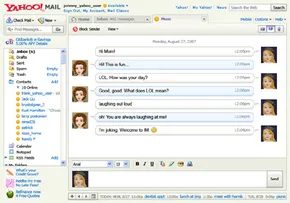
If you see a friend is online, you can convert an email draft into a chat message. They need a Yahoo ID or a Windows Live Messenger ID. They also need to be signed into Yahoo Mail, Yahoo Messenger, or a compatible instant messaging client. Without that, the connection breaks.
Your status lives in the header of your mail page. Set it to “Available” and the system shows you who else is around. Look for the orange circle next to their name on your contact list. That is your green light. Click the name. A chat window pops up. You talk. They talk. It is done.
Why use text messaging for Yahoo contacts
Sometimes you want to reach someone on their phone, not their computer. Yahoo Mail allowed you to send SMS messages directly to your contacts.
To do this, open the “New” menu. Select “Text Message (SMS).” A small window appears. Type the person’s name or their mobile number. You have a limit. 158 characters. That is tight. Keep it short. Click “Enter” or “Send.”
Their reply shows up in that same area. It feels like a normal text thread, but it lives inside your mail interface. No app switching. No separate messaging platform. Just a quick line of text to a mobile device.
Accessing your inbox on mobile devices
Before smartphones were everywhere, “mobile access” meant a stripped-down web experience. Yahoo Mail for Mobile let you send and receive email on the go. You could read messages, open attachments, and browse your contact list.
The biggest win was notification. You got pinged instantly when a new message arrived. You did not have to refresh the page and hope. For details on those specific mobile services, the old documentation pointed to http://mobile.yahoo.com/mail. It was a basic setup. Functional, but basic.
Using RSS feeds to track live content
This was the most interesting feature for many users. RSS feeds let you subscribe to web content. News sites. Weather reports. Sports scores. Stock updates. Instead of visiting ten different websites, the summaries came to you.
You would see an “All RSS” folder on the left side of your mail page. Click it. A list of your subscriptions appears. Some were pre-loaded. Click a feed to see its summaries in the main window. Click a summary to read the full article. An orange icon marked new, unread items.
Adding new feeds was simple. Click the “Add” link next to “All Feeds.” Then click “Add” next to a feed in the list. Or use the search feature in “Add Content” to find specific topics. Click “Add” to subscribe. To stop getting a feed, select it and click “Remove.”
It was a way to curate your information diet. You decided what mattered. The rest stayed out of your inbox.
What this meant for everyday users
These features changed how people interacted with their mail. It was not just a storage unit for letters. It was a communication center. Chat for speed. SMS for reach. RSS for information. Mobile access for convenience.
Yahoo kept adding features as technology evolved. The Help section had tutorials and FAQs to guide you through it. It was a complex system, but it worked for those willing to learn it. The tools are old now, but the logic remains. Pick the right channel for the right message. Do not force a conversation into a format that does not fit.
The interface may have changed since then, but the principle holds. You control the flow of information. You decide how fast it moves. You decide where it ends up.